The purpose of Blackboard Email is to allow users an easy way to send email messages outside of the Blackboard system without having to login to a separate email client. For instance, let’s say you are browsing through some lecture notes or trying to complete an activity and have a question. Instead of opening a new browser window and logging into your UA Little Rock email, you can send an email straight from the Blackboard system.
Accessing Email
You can only send Blackboard Email from within a course and only if the instructor has made the email tool available on a link in the course menu. If the instructor is using the Blackboard Email system, then you will receive those messages via your UA Little Rock Email account.

Important Note: Course Menu Customization: Your instructor has the option to rename this tool in the course menu. So while the course menu link may be called something different, the Email page will be clearly labeled with the name of the tool. This is how you will be able to tell if your instructor is using Blackboard Email or Blackboard Messages.
Email Recipients
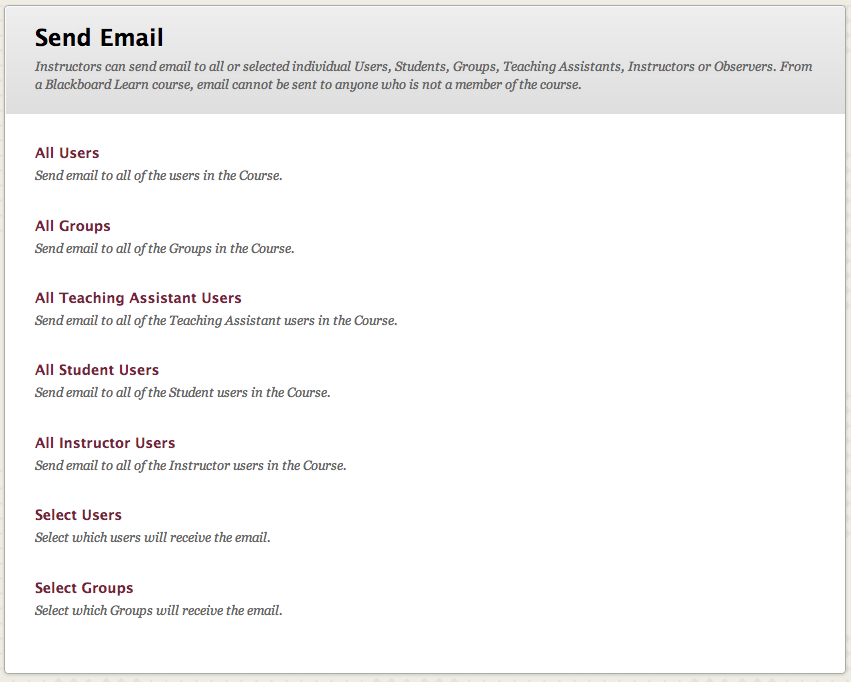
Blackboard provides multiple options for selecting the recipients of your email.
| Email Option | Description |
|---|---|
| All Users | Sends email to all users in the course |
| All Groups | Sends email to all of the groups in the course |
| All Student Users | Sends email to all the students in the course |
| All Teaching Assistant Users | Sends email to all of the Teaching Assistants in the course |
| All Instructor Users | Sends email to all of the Instructors in the course |
| Select Users | Sends email to a single user or selected users in the course |
| Select Groups | Send email to a single group or selected groups in the course |
Composing and Sending Email
If you choose to send an email to all users, groups, students, teaching assistants, or instructors, you can disregard the first step in the instructions below.
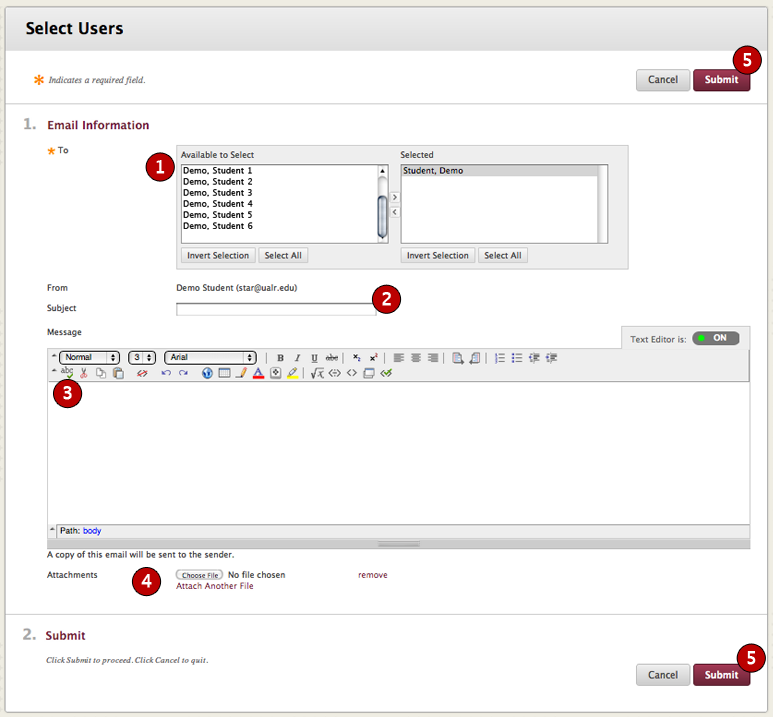
To send an email inside of Blackboard:
- Select one or more Recipients, and then use the right arrow button to transfer to the name to the Selected column.
- Enter a Subject for your email message.
- Type your message.
- Click Attach a File to browse for files from your computer. You can attach multiple files. After you add one file, the option to attach another file appears.
- Click Submit to send your message.
Important Notes: Inactivity Timer: Something to keep in mind is Blackboard has a 30 minute activity timer and typing is not a recognizable activity in the Blackboard system. If you are composing a message and it takes more than 30 minutes to complete, the page may reset. When the page resets, it will not send your email and you will lose the body of your message. If your messages takes some time to compose, you may want to make a copy of your text before hitting submit in case the system has reset.
Best Practices Using Email
Communicating with Email is efficient and effective. Please be mindful of the following best practices when using this tool.
- Provide a greeting
- Keep your message clear and concise
- Use complete sentences
- Check your spelling and grammar
- Quote others when appropriate
- Include a descriptive subject line
- Only use capital letters as necessary as ALL CAPS can be seen as raising one’s voice online
- Sign your name!