
The Blackboard Discussion tool is used to enhance communication between you, your peers, and your instructors when used in conjunction with traditional on-campus courses, and it provides a forum for discussion in fully online courses. During your course, you may be asked to use the Discussion Board to introduce yourself, to respond to instructor questions and reply to others, to formulate answers to case studies, or as part of a peer writing and review process. You may even be asked to lead a discussion.
All About Discussion Forums
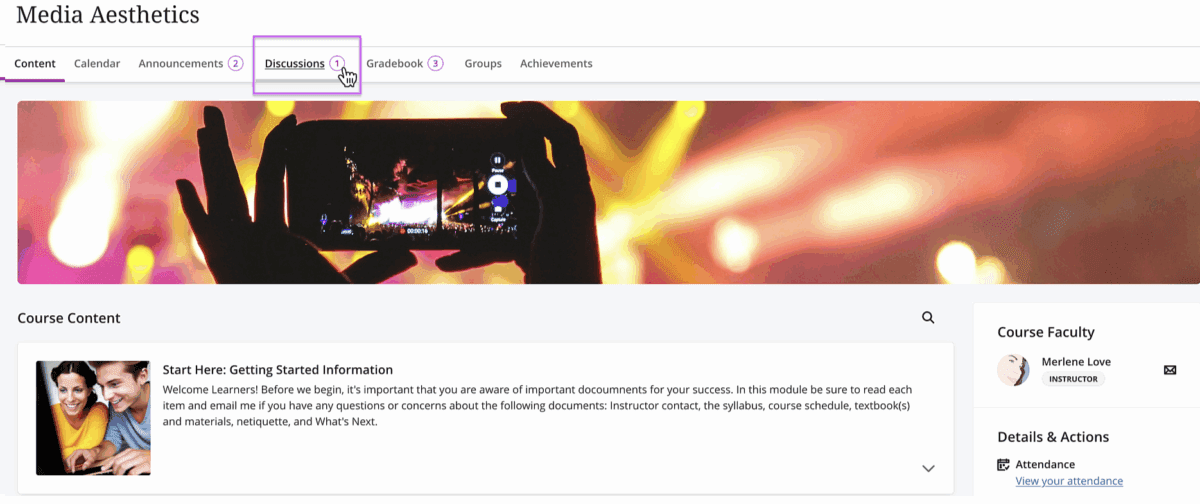
Depending on the settings, your instructor may have you access the Discussion Board through the Discussions tab on the course navigation menu, through a discussion board link in the Course Content Outline, or both may be available as shown below.

Creating a new post
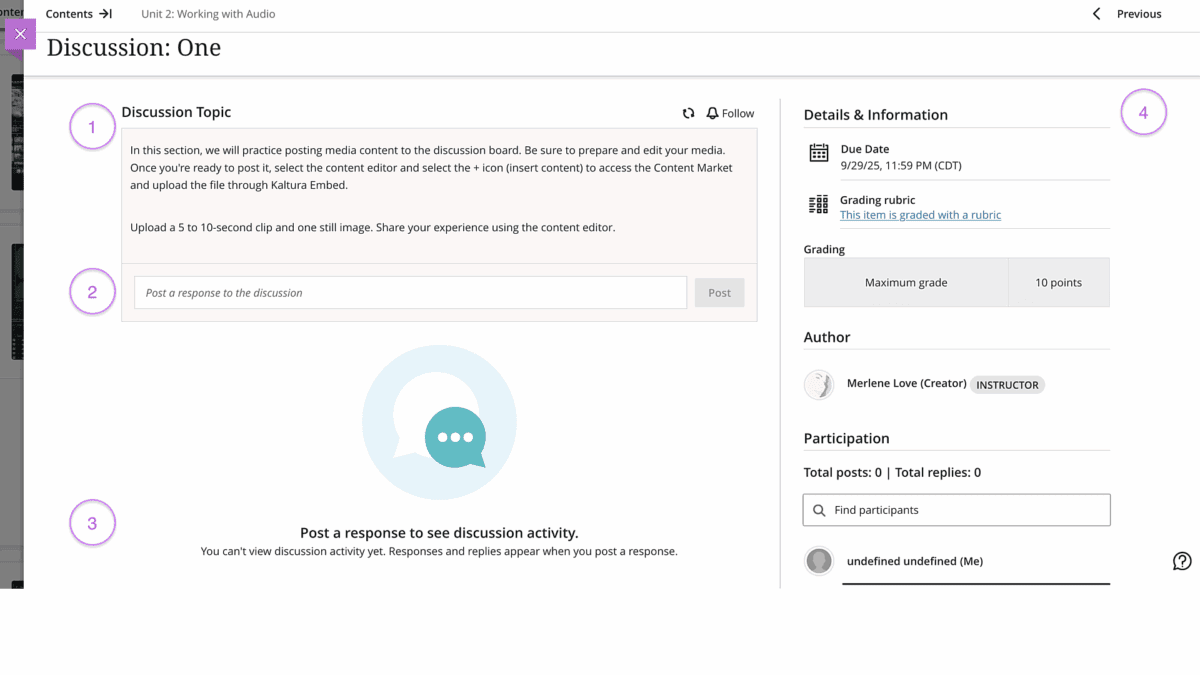
When you open a discussion forum, the title and topic are displayed first. After reviewing the discussion topic information, you can prepare your response. You may find it convenient to use a text document to write and revise your response, then copy and paste the text into the Post a response to the Discussion box, item two. If your response is concise, taking only a few minutes to write, then place your cursor in the “post” box and begin your response.
Some instructors require you to post a response to see the discussion activity, noted in item three. This provides you with the opportunity to share your thoughts without being influenced by the responses of others before you post.
Details & Information.
For information about the due date, grading points, grading rubric, author, participants, or other details set by the instructor, see item four’s listing.
Working with the Content Editor in the Discussion Forum
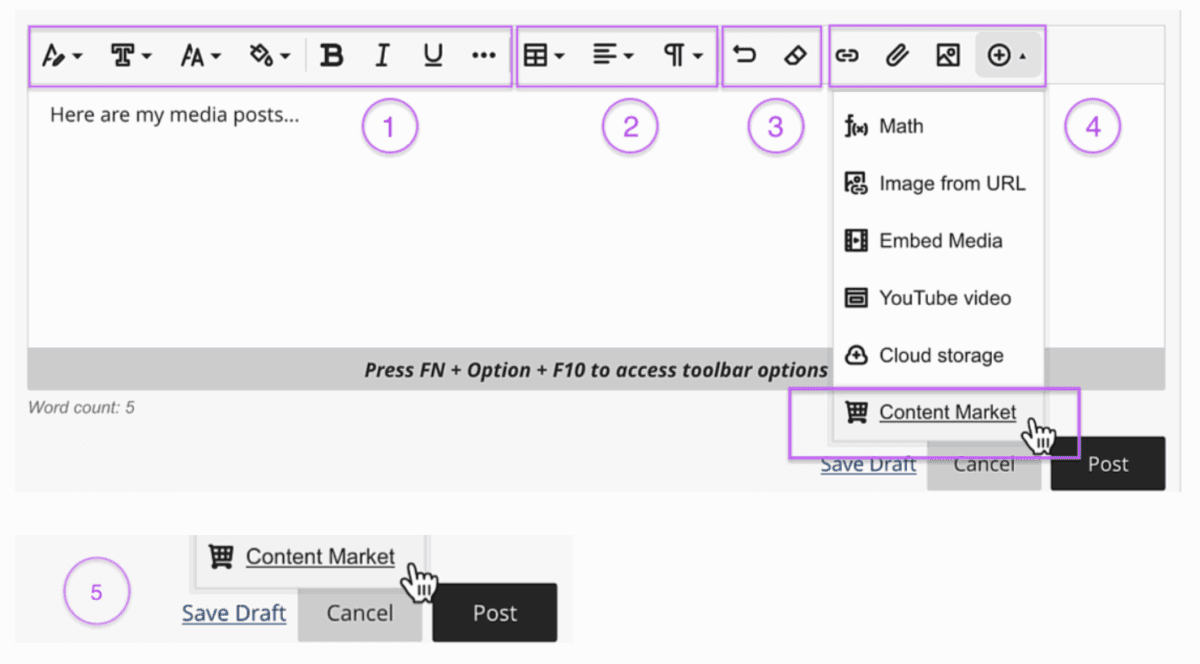
Once you insert text inside the Content Editor, it will expand to provide you with more options to format text and upload media.
- Text Styles, Font, Size, Bold, Italic, Underline, Text Options
- Edit table, Alignment, Lists
- Undo, Clear Format
- Link, Attachment, Image, Image, Insert Content
- Content Market, Kaltura Embed (from Kaltura My Media), Save, Draft, Cancel, Post
How to Save and Edit a Draft Post
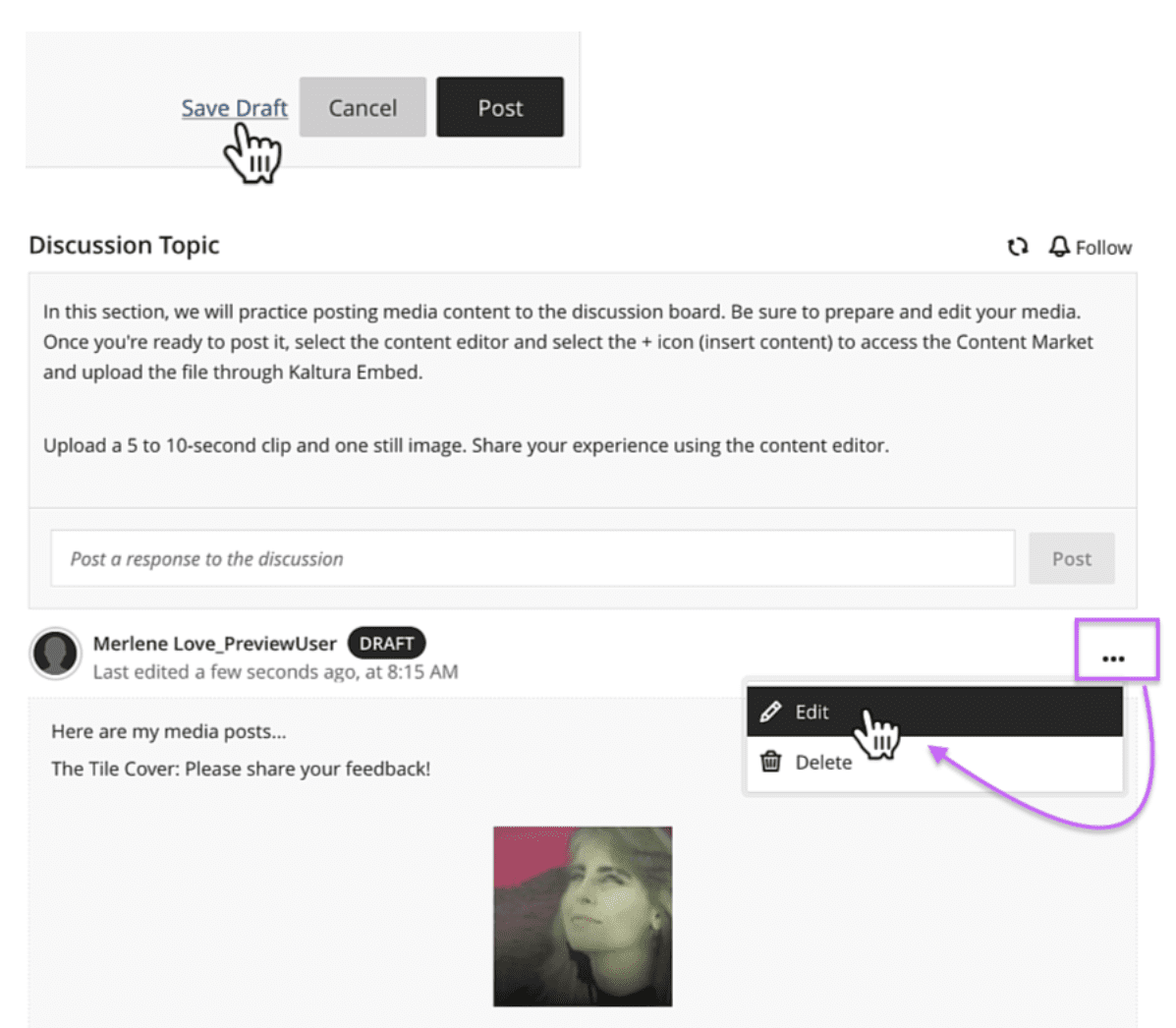
You can save a draft of your discussion response– retrieve and edit it, and then post to the forum. To do this, add your information to the Content Editor and use the Save Draft link to save your work.
When ready, locate the draft and just click the ellipse icon to update your response. Here you can delete, save, or post the response.
Replying to a Post
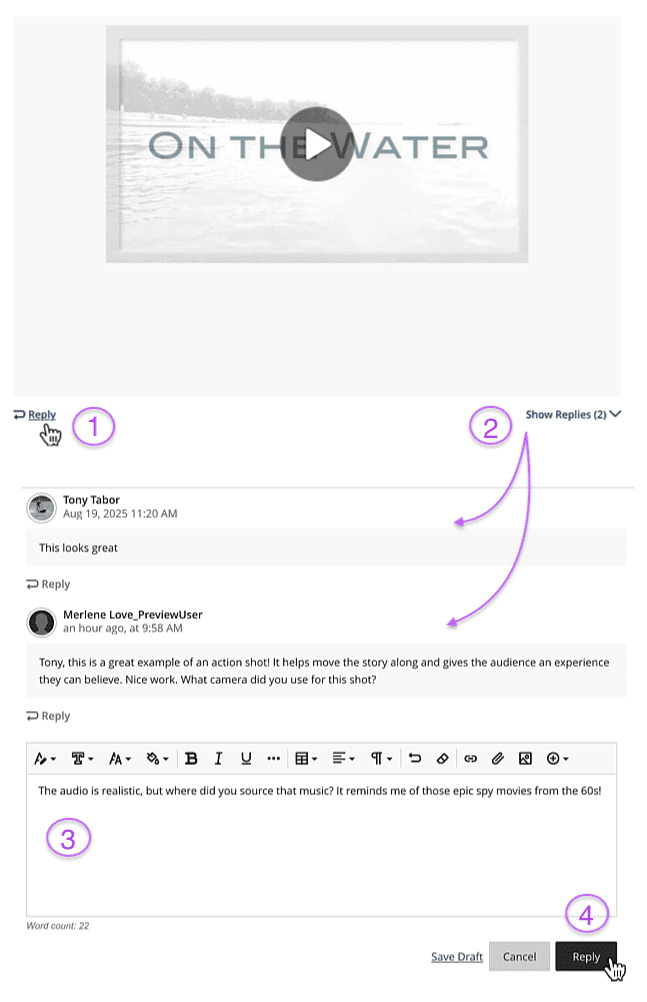
Once you’ve composed your response and made a post, you can reply to your peer’s comments. Just click the “Reply” (1).
You can select the “Show Replies” (2) to read and respond to multiple replies from your classmates– click reply to respond.
This will open the “Content Editor” (3), where you can provide text, images, or other media in your response.
Send your “Reply” (4) to continue the discussion.
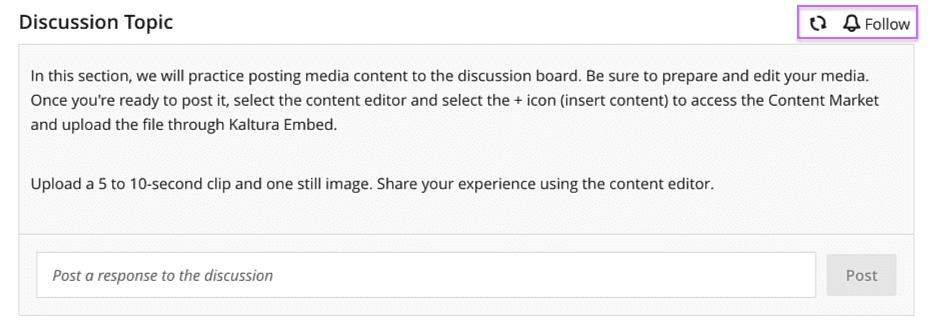
Follow
If you would like to see the replies to your post and respond to your classmates, just select the bell icon to be notified when new posts are added to the thread.
Best Practices
Remember to use good netiquette when responding to the discussion thread. Your instructor may ask you to respond to a number of your classmates’ posts. Be thoughtful, polite, and respectful. Should you disagree, it’s okay as long as you’re constructive, so take a moment to think before you respond and add something meaningful to the conversation.