

Ally is an accessibility tool integrated directly into Blackboard to provide instructors with feedback and guidance on accessible learning materials. Ally automatically assesses each piece of content for digital accessibility standards and suggests improvements based on what is found. It also creates alternative formats of documents, which ensures that they are readable on mobile devices and by assistive devices.
With Ally, faculty can proactively address common accessibility barriers, which ultimately improves the course for all students.
UA Little Rock Ally Score Goal
In summer of 2026, the Provost, with guidance from the University of Arkansas System Office, set the follow goals for the campus Ally scores:
- 85% or above for all Fall 2026 courses
- Full compliance with the updated ADA Title II/Accessibility federal regulations for all courses in Spring 2027
Accessibility is an ongoing process; as new content is added to courses, each item will need to be created with accessibility in mind. The official technical standards are outlined in the Web Content Accessibility Guidelines (WCAG) 2.1 Level AA.
Using Ally
To get started with Ally, you will first need to log into your course. Keep in mind that Ally is continually improving its ability to remediate inaccessible content; visiting the Ally Instructor Help Center will provide the most up-to-date information.
Ally for Instructors: Microlearning for Accessible Teaching video series is also available for instructors who prefer short video demonstrations.
As an instructor, you will see an accessibility indicator that appears as a red, orange, or green gauge next to each item of content. Scores range from Low (red) to Perfect (dark green). For, items rated low, medium, or high, Ally will give an explanation of the issue and step-by-step guidance on how to remediate them.
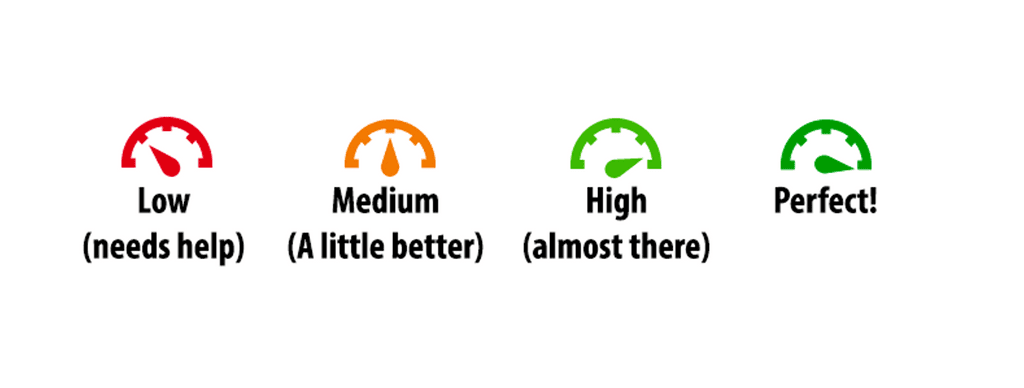
This feature is automatically enabled for all courses when seen in instructor view.
Clicking an indicator opens the Ally feedback panel, which shows the file’s accessibility score that’s calculated based on the severity of the accessibility issues present in the document.
Instructors can find their course Ally report from the “Details & Actions” menu in any course. Click the “Books & Tools” link and choose “Accessibility Report” from the top of the “Available Tools” menu.
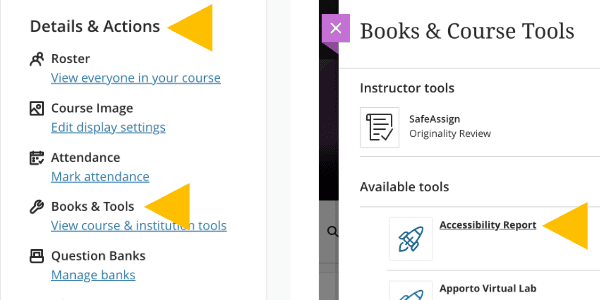
The course-level report enables faculty to see an aggregate score for the content in a course and review a list of individual content-level scores at a glance.
Content and course-level scores are not visible to students — they’re simply there to help faculty identify issues detected by Ally and track their progress as they remedy them.
Learn more about the content that Ally scores on the Accessibility Score Guide.
When viewing the Ally score for an individual piece of content from either the Instructor View or the Ally course report, a feedback panel will appear along with the score.
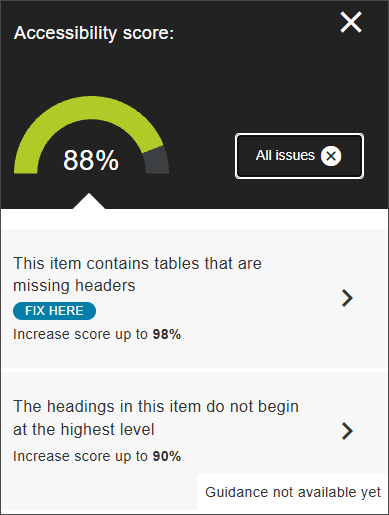
The feedback panel lists those issues along with tips for fixing them, and faculty can even use the feedback panel to replace content that’s been remediated — it’s as simple as dragging and dropping the updated file. Once updated, Ally automatically recalculates the score.
Faculty can also access the feedback panel for individual content items directly from the course-level report, making it easy to assess issues in one place.
For more information on common digital accessibility issues and how to improve them, please visit the Improve Content Accessibility Ally Help page.
Ally generates alternative formats of documents uploaded directly into Blackboard so that anyone who needs them can choose the format that works best for them.

Students can choose to download content in their preferred format by clicking the “A” icon wherever it appears.
For more information on alternative formats in Ally, visit the Ally Alternative Format page.