All About Journals
Journals are a personal space for you to communicate privately with your instructor. You can also use a journal as a self-reflective tool to post your opinions, ideas, and concerns about the course, or discuss and analyze course-related materials. For example, you can describe problems faced and how you solved them. Your instructor can direct journal entries to be more formal in nature and narrower in focus by listing topics for discussion. Journal entries can be assigned a grade or used solely for communication. In either instance, you can make multiple entries for one journal topic.
Accessing Journals
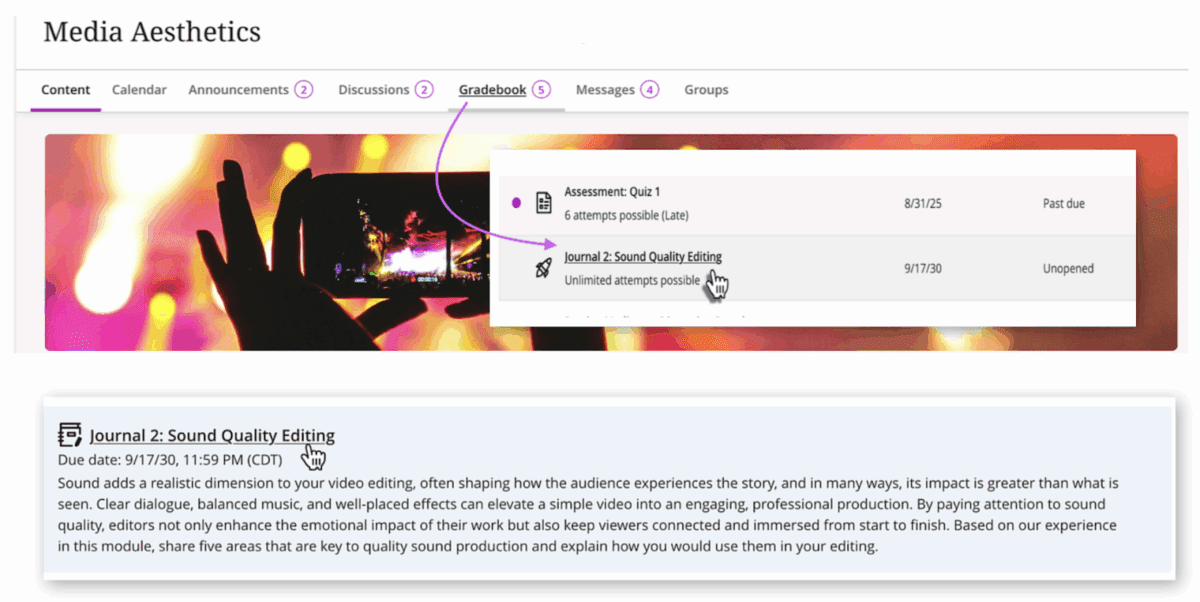
You can access Journals inside the Course Content Outline or from the Gradebook. In the Course Content Outline, you may need to select a module or folder to access the journal. To find the journal from the Gradebook, click the tab and locate the Journal Title. Click the link to open the topic.
Working with the Journal Tool
When your instructor provides you with a journal topic, review the information carefully to ensure you cover the topic requirements before responding. If the response is lengthy, some find it convenient to draft their thoughts in a document editor, check the spelling and grammar, then copy and paste their response into the Content Editor. Note: The content editor may close due to inactivity. If this happens, your work will be lost.
Journal Tool Functions
The Journal Tool works similarly to the other tools, where you can access the content editor. The Journal Topic is available upon access, and the number of Entries or responses may be changed per page. Below, items 1 through 5 detail the journal’s functionality.
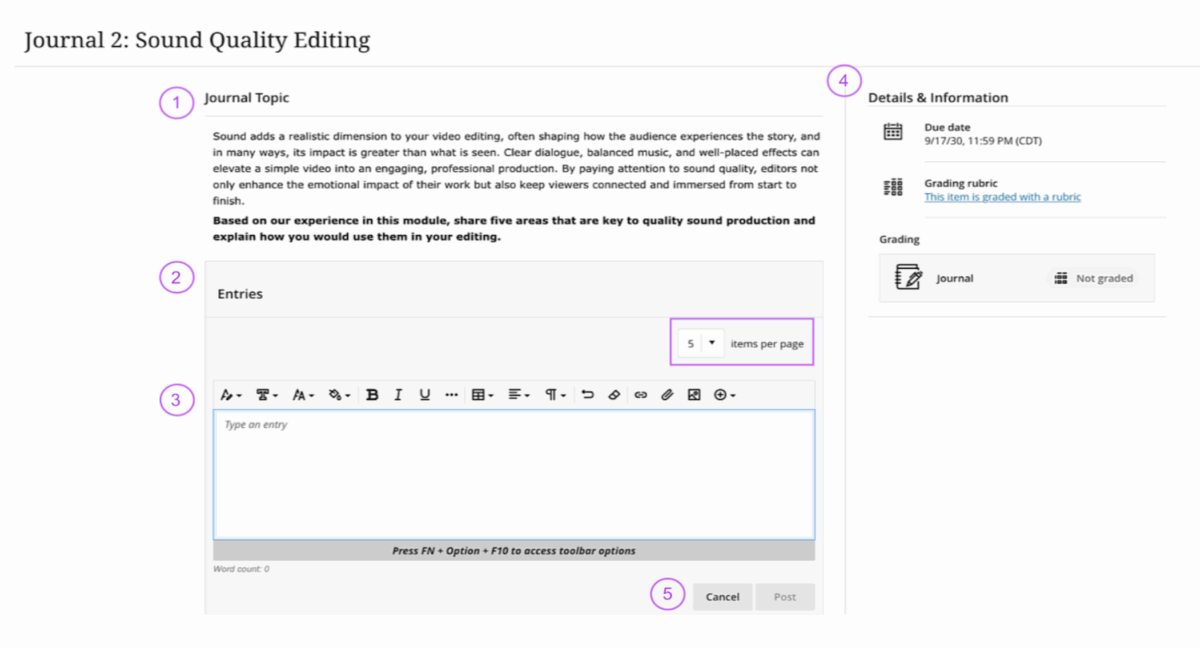
1. The Journal Topic displays information regarding the topic.
2. The Entries dropdown menu allows you to change the number of posts to 5, 10, or 20.
3. Use the Content Editor to add text, links, attachments, or video content to your response.
4. Details and Information provide the due date, grading details, or rubric, if one is provided.
5. Be sure to Cancel and Post your response to the Journal.
Editing Your Journal Entry
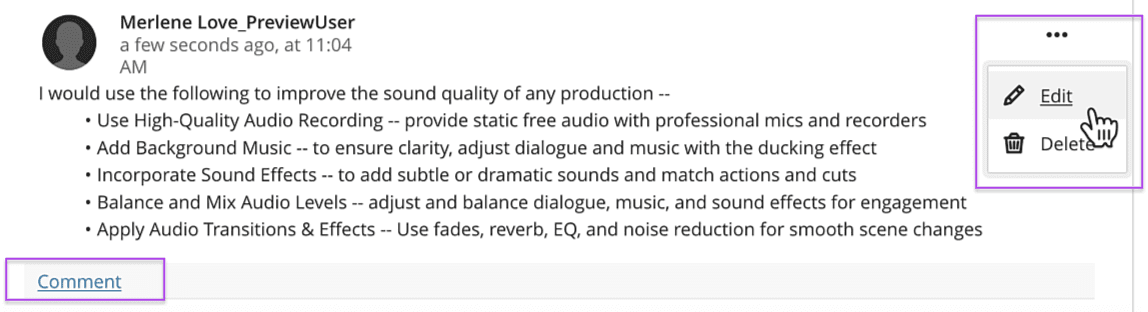
The journal tool does not allow you to save a draft, but you can edit the post if needed. To do this, click the three ellipses in the right corner of the post. This will allow you to edit, update, or delete the post.
Comments
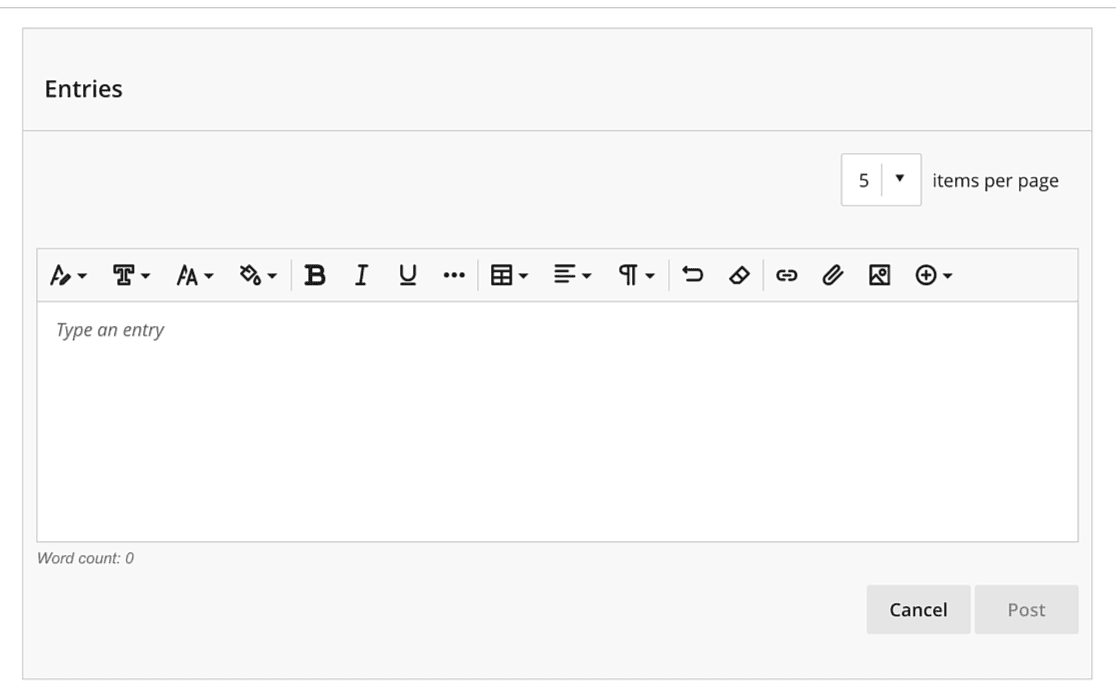
Comments are available at the bottom of each post entry. This provides an opportunity for you and your instructor to have an ongoing conversation. Clicking the comment box will open another instance of the Content Editor to write and post your responses.
Details & Information
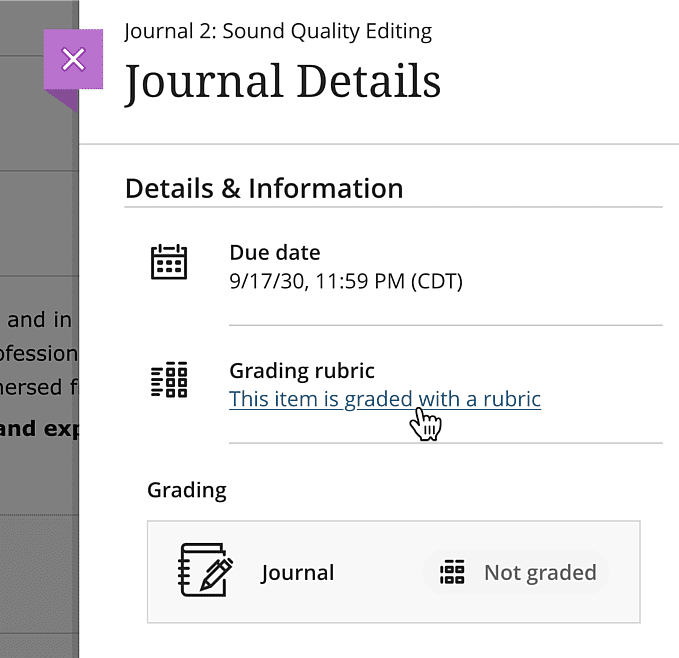
The Details and Information section provides you with the Due Date, Grading Rubric, and Grading Points for a journal that is graded. While your instructor will probably set a due date, not all journals are graded. This is true when the journal is used as a communication tool between you and your instructor.
Grading Rubric
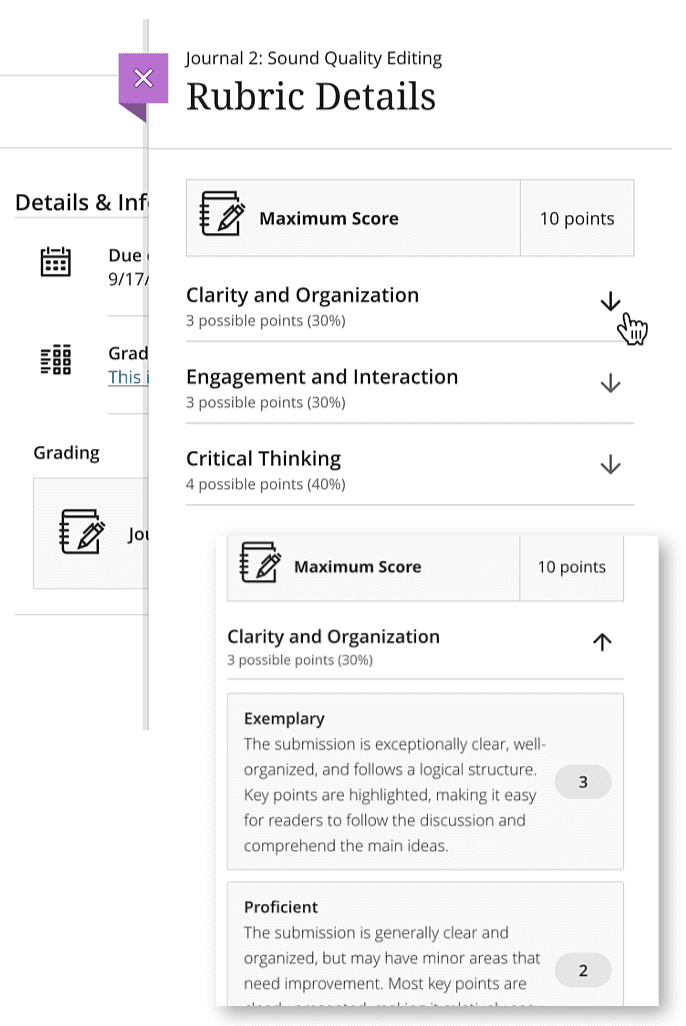
A journal may or may not have a grading rubric. If a rubric is available, click the grading rubric link to view the details. Here you will find information to inform your response and to note the possible points across the grading criteria for the assignment.
Journal Grading and Feedback
Once you have completed a gradeable journal assignment, you can access it through the Gradebook menu tab or the Course Content Outline. If the journal has not been graded, it is indicated by an icon labeled “Not Graded.”

Graded Journals
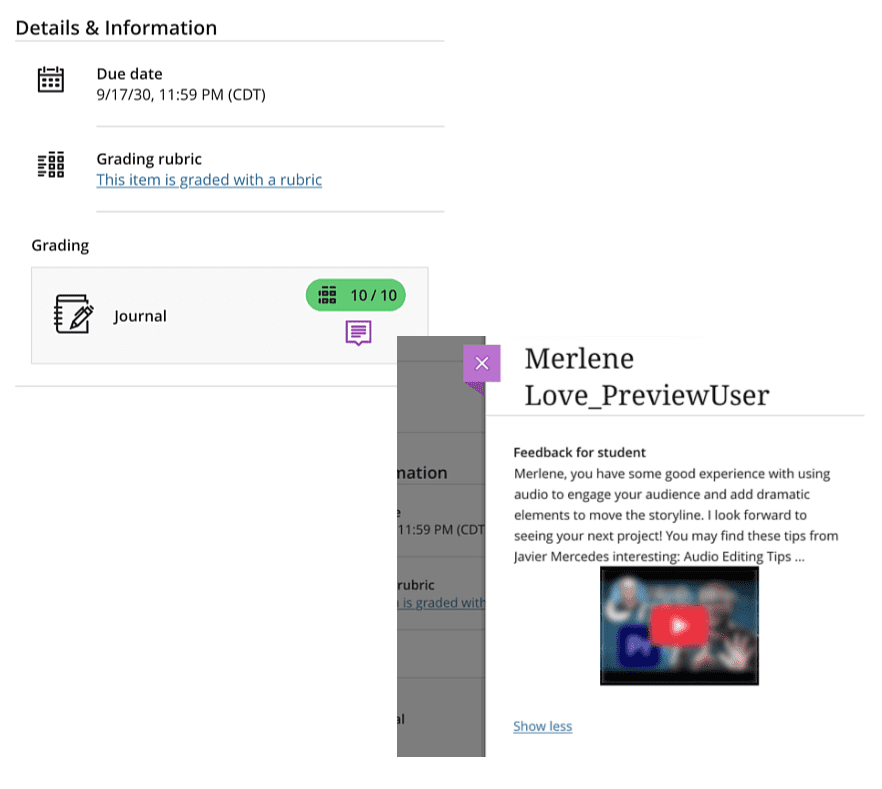
Graded journals, noted by the green pill icon, indicate the points made and the possible points for the assignment. If your instructor provided feedback, a “View” option is provided. You can view your feedback by clicking the box.

Viewing Journals from the Course Content Outline
You can, of course, view your Journal through the Course Content Outline by accessing its module or folder in the Details & Information panel. Under the grading item, click the purple icon to review your instructor’s feedback.