

Submitting your work with the Assignment tool in Blackboard allows you to easily upload your homework files to your instructor and receive files back, along with your grade. There is no need for paper or even email.
Submitting Assignments
Assignments in Blackboard are accessible once they’ve been deployed by your instructor on the Course Content Outline. Your instructor may have an entire area in your course dedicated to all assignments, or assignments may be placed along with related lesson material within unit modules in the course.
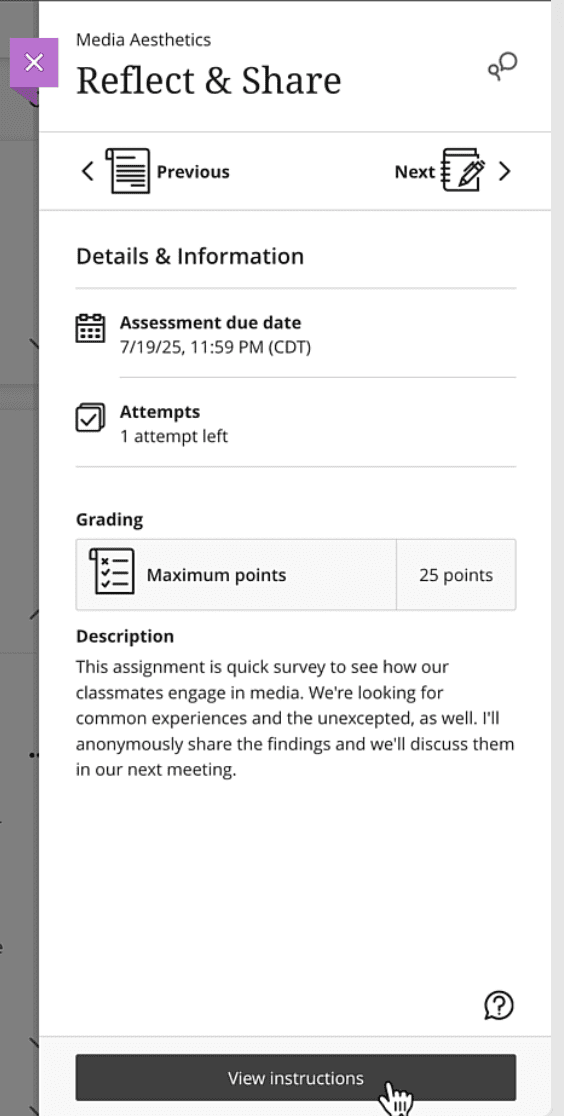
Click on an assignment link to open the Details & Information panel and view the following information:
- Assignment due date: Restrictions on when assignments must be submitted for credit will be listed here
- Attempts: Displays the number of times you can submit work to the assignment dropbox
- Grading and Description: Grading displays the maximum points possible, along with a rubric, and a description about the assignment may be included.
To open the Assignment Submission page, click the ‘View Instructions’ button at the bottom of the Details & Information Panel.
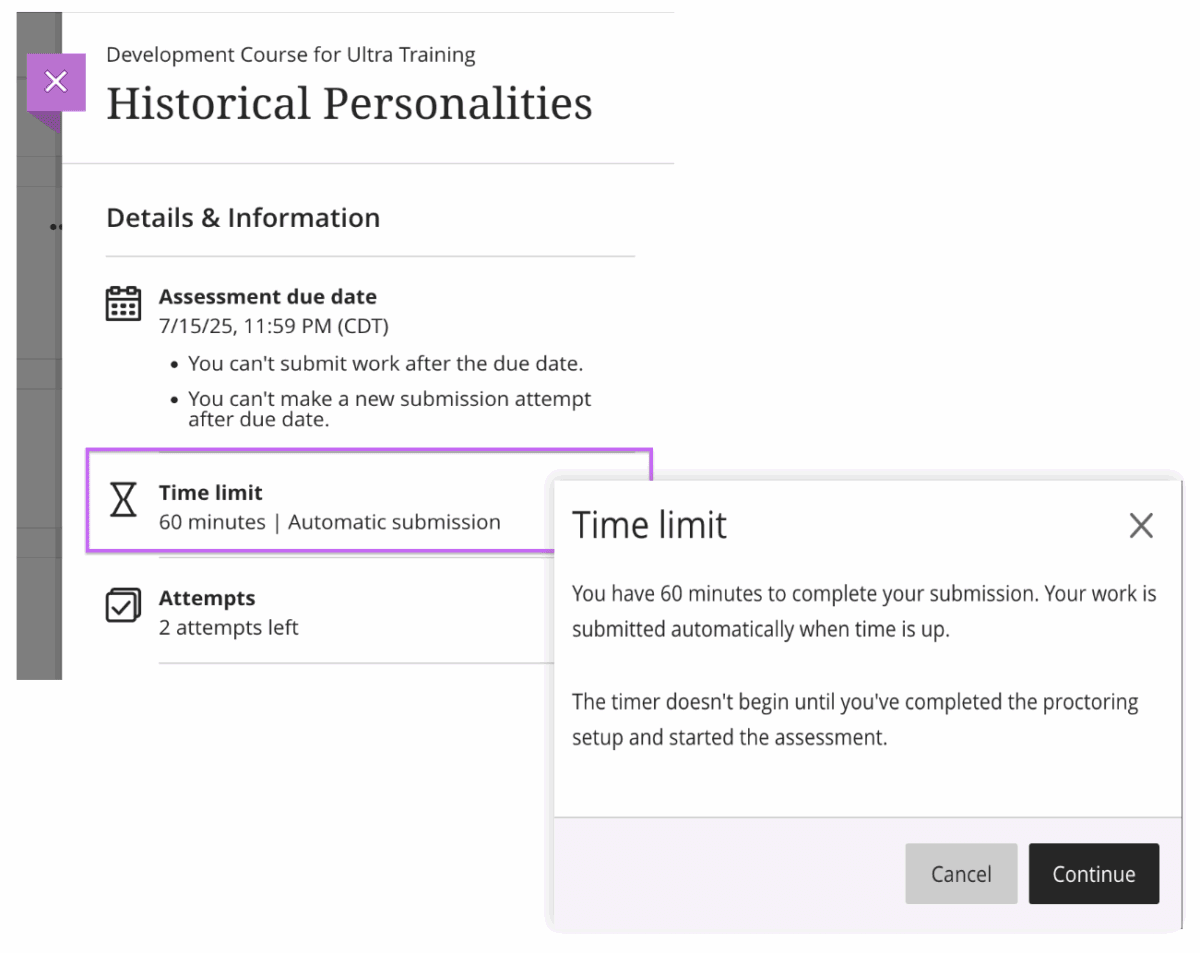
Assignments with a Time Limit
Assignments with a time limit will display the amount of time you have to submit on the Details & Information panel. The timer will begin counting down when you click the ‘Start Attempt’ button, so be sure you’re ready to submit. If no time limit is listed, you can click the ‘View Instructions’ button without penalty until the listed due date.
Adding your Submission
Once you’ve opened the Assignment Submission page, you should see a text box beneath the instructions, where you can add your submission using one of the following methods:
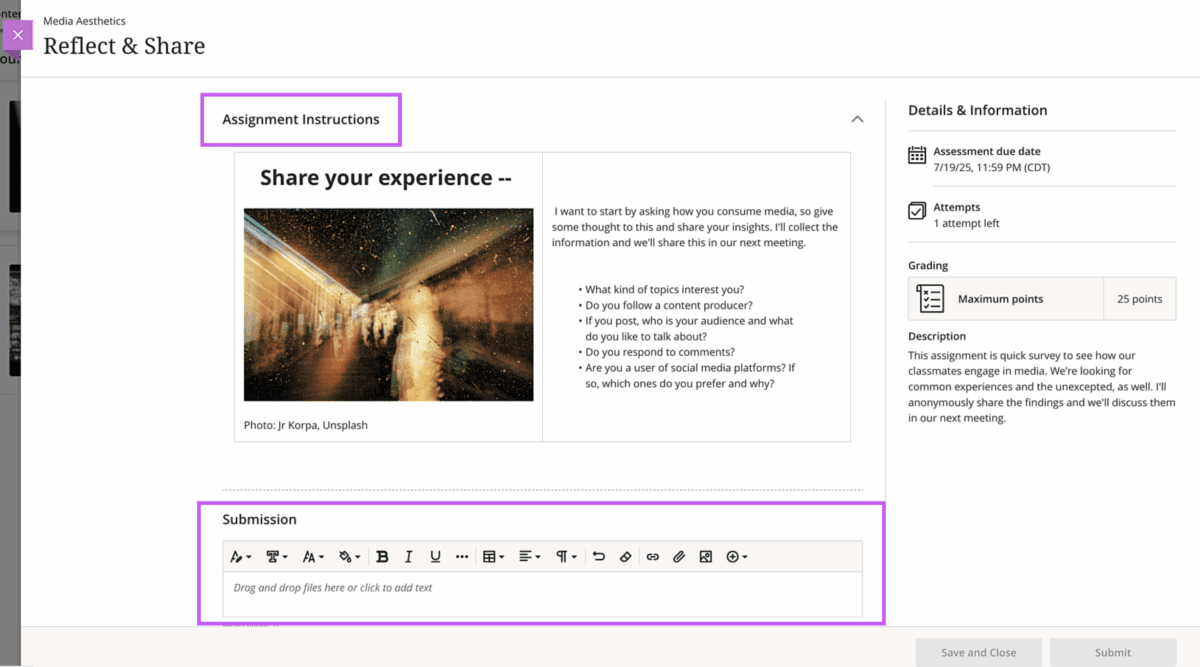
Type your text: use the editor to format your submission, and be sure to click the save button if you close the page before submitting
Drag and drop: You can drag files from your desktop onto the Submission text box to upload documents
Paperclip icon: Use this to attach files if you can’t drag and drop from your desktop
Plus icon: Embed external content from YouTube, Kaltura, Google Drive, Microsoft OneDrive, and more
Check your work
Once a file has been embedded in the text editor, you should see a preview of your work. Check to make sure this is the correct version before submitting by allowing the preview to load.
Once you’ve confirmed that the correct version of your document has been attached to the submission text box, click the ‘Submit’ button at the bottom of the screen.
Verifying and Viewing Submission Receipts
Upon submission of your assignment, a submission receipt displays with the option to download a text file for your records. In addition, an email will be sent to your UA Little Rock email account.
You should confirm that you’ve received a receipt of your submission each time you turn in your work by checking your UA Little Rock email account. It’s important to verify that your assignment has been successfully submitted each time you turn in your work.
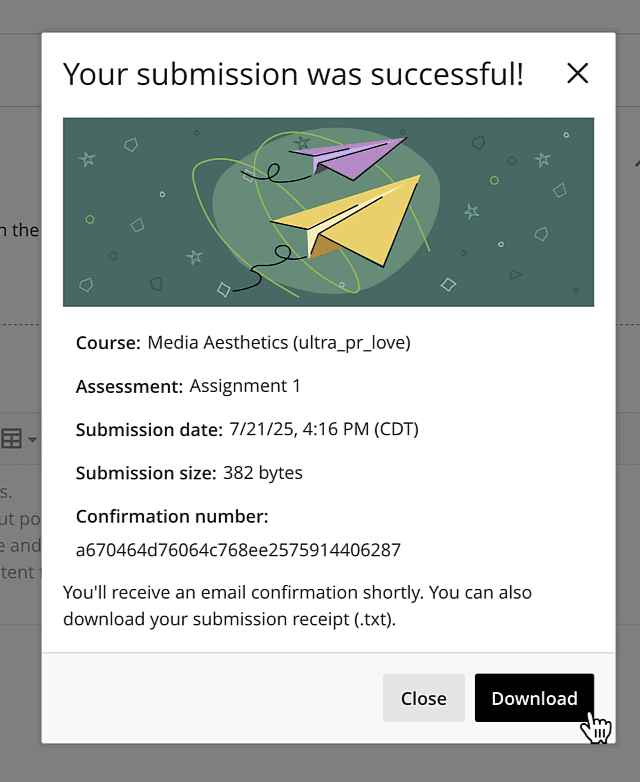
If you do not see the submission receipt pop-up after submitting your work and/or do not receive a receipt of your submission in your UA Little Rock email account, you should contact the Blackboard Student Support help desk immediately. Do not wait until the assignment due date has passed or until grades are submitted for your course to report an issue with submitting an assignment.
Viewing Assignment Grades and Feedback
Once your instructor has graded your submission, you should be able to view the assigned score and any feedback provided through the assignment tool by clicking the ‘Gradebook’ tab at the top of the course.
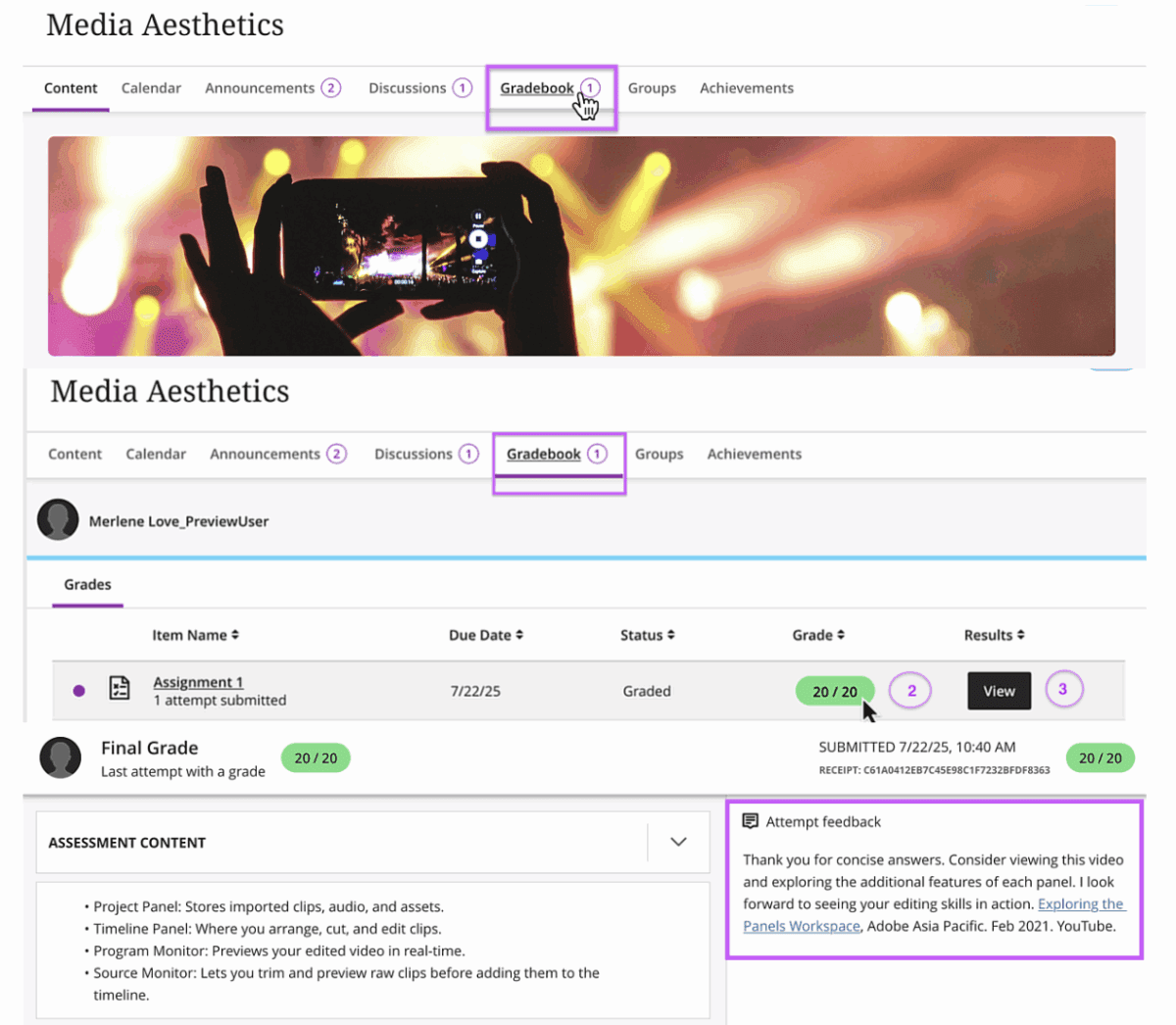
To review the assignment through the Gradebook
1. Click the Course Content Gradebook menu and select the assignment you’d like to review
2. Click the grade pill to view your grades. If a rubric was used, the grade pill will display a rubric icon.
3. Click the View button to review your instructor’s feedback.
4. If multiple attempts are available, you access those options through the assignment in the Course Content Outline.
Full documentation at help.blackboard.com. Submit Assignments
SafeAsign
SafeAssign is a plagiarism prevention tool offered by Blackboard that helps educators detect unoriginal content in student papers. In addition to acting as a plagiarism deterrent, it also has features designed to aid you with learning about plagiarism and the importance of proper attribution of content from other sources and by other people.
Students submit their work to SafeAssign as part of the assignment submission process detailed above. Not all assignments in Blackboard use SafeAssign, but those that do will ask you to agree to submitting your paper to the Global Reference Database when you attach your work for submission.
Once submitted, SafeAssign checks the originality of your work by comparing the text to text on the Internet, within published articles, and to the work of other students at UA Little Rock. The amount of time it takes for SafeAssign to review your work depends on the demand on the system and the length of your submission.
If your instructor allows it, you can view the SafeAssign originality report on the assignment submission page. You can find more information about accessing and interpreting the SafeAssign originality report on the Blackboard website.