
Using the Main Navigation Menu
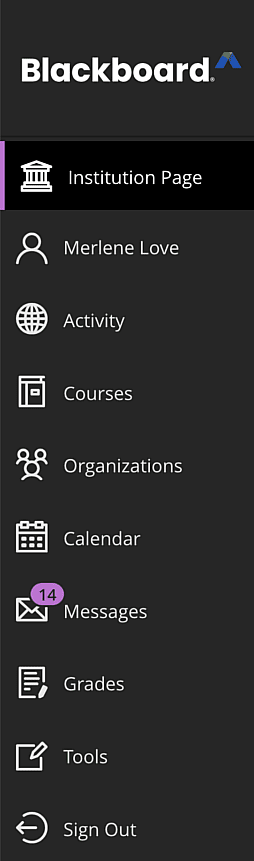
Institutional Homepage: The first page you see when logging into the Blackboard system is the Institutional Homepage. It displays quick links for access to other university systems like your email and Boss accounts. You’ll also will find campus-wide announcements and other information about your online courses.
Your profile: Click your name on the main navigation menu to view your system profile. You can learn more about updating your profile picture and editing your notification settings on the Blackboard website.
- About your password: Your profile contains a password reset link that is native to Blackboard, but using this will not work. To change your password, follow these instructions on the IT Services website.
Activity Stream: Think of the Blackboard Activity Stream as a news feed for your online courses. Updates about content, assignments, tests, and grades in your courses are posted here. You can learn more about the Activity stream on the Blackboard website.
Courses and Organizations: If your instructor uses Blackboard for a course this semester, you can access any associated materials from the courses page. In some instances, you’ll need to access content in Blackboard unrelated to your coursework. You can find this content on the Organizations page. You can read more about accessing Courses and Organizations on our website.
Calendar, Messages, Grades, and Other Tools: The Blackboard system navigation menu gives you direct access to tools that might be used within your courses. These tools include the calendar, messages, and grades tools. For each of these tools, it’s important to note that they may remain accessible to you on this menu. This is true even if they are not in use by your instructor. Always check your course for information about your instructor’s preferred method of contact, important dates, and guidance on keeping track of grades before using these tools.
Navigating Inside the Course Environment
Each Blackboard Ultra course has its own materials and structure, but the layout and navigation work the same everywhere. Here are three features you’ll always find in your courses.
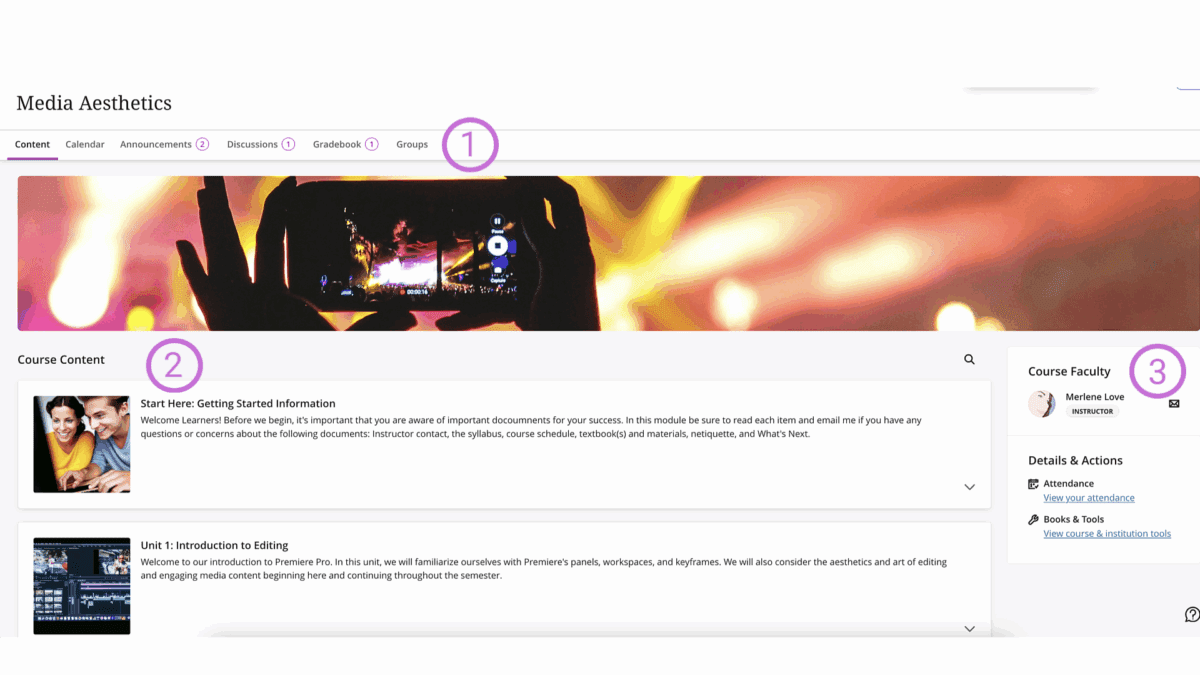
- The Navigation Bar at the top of each course gives you access to commonly used features like the Calendar, Gradebook, and Announcements tools.
- The Course Content outline is where you’ll spend the majority of your time. This is where the content for the course will be organized in learning modules and folders.
- The Details and Actions menu on the right of the screen grants access to different tools that may be in use in the course.
Learn More: Types of content that might be made available to you on the Blackboard website.
Using the Content Editor
You’ll see the Content Editor anywhere you can type. Use it to format text, attach files, or add media like images and video to your work. The editor shows up in places like the Discussion and Assignment tool, and allows you to do the following:
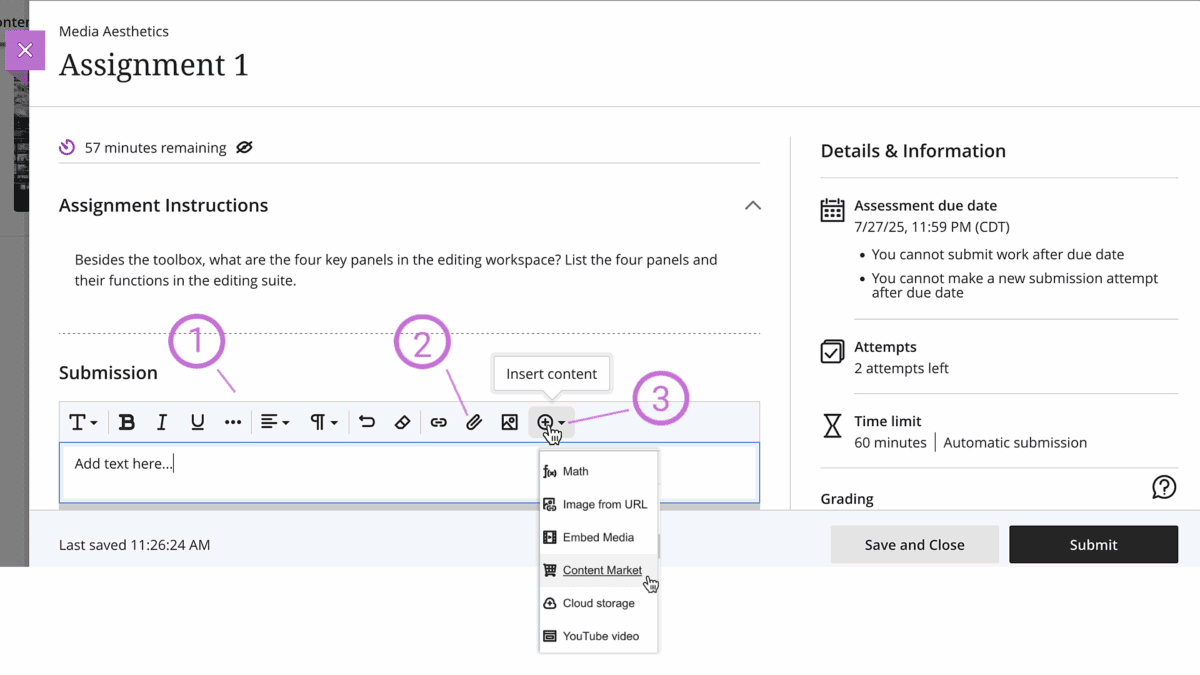
- Format Text with the buttons that appear in the toolbar above the input box. You can adjust text style, indentation, and spacing, or add elements like tables.
- Attach Files to the content editor with the paper clip icon. Note that you can drag and drop files directly into the editor input box to attach, but the paper clip icon will let you do the same thing if drag and drop is not an option for you.
- Insert Content into the text editor using the plus icon. The options that appear here help you embed video, add content from external services, and access the equation editor.
Learn More: How to use the content editor for your work.